

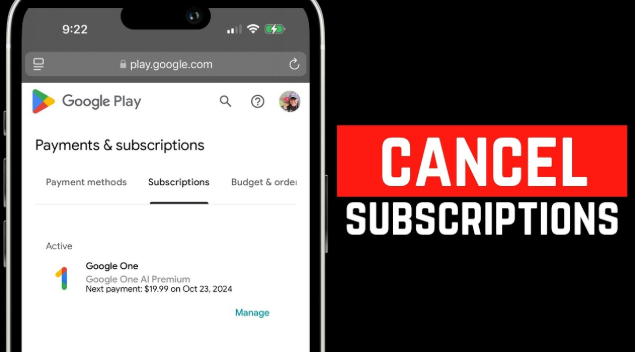
Taking control of your digital expenses means knowing exactly how to stop unwanted charges. When you purchase premium features, a streaming service, or a digital publication through Google, the system automatically sets up a Recurring Payment. If you no longer want to use the service, simply deleting the application off your device does not stop the billing process. You must actively cancel the Google Subscription through your official account settings. This guide explains how to locate your active memberships and terminate them across different devices.
Canceling on an Android Device
Your Android phone or tablet provides the most direct route to manage your billing. Open the Google Play Store application on your device. Tap your Profile Icon located in the top right corner of the screen. Select the Payments & Subscriptions option from the menu, and then tap Subscriptions. This screen displays a list of all your active memberships. Tap the specific subscription you want to end. Scroll down and tap Cancel Subscription. The system will ask for a reason; select one and follow the on-screen prompts to confirm your final choice.
Canceling on a Computer
Managing your account from a desktop or laptop computer offers a clear view of your finances. Open a secure web browser and navigate directly to g.co/playcontinue. Ensure you log into the correct Google Account associated with the purchase. Click your Profile Picture in the top right corner. Select Payments & Subscriptions from the dropdown menu. Click the Subscriptions tab on the left-side navigation panel. Locate the specific service you want to stop and click Manage. Click Cancel Subscription and confirm your decision in the popup window.
Canceling on an iPhone or iPad
If you originally set up the subscription using a Google app on an Apple device, you must still manage the billing through Google’s infrastructure. Open a web browser on your device. Go directly to myaccount.google.com. Tap the menu and navigate to the Payments & Subscriptions section. Scroll down to locate your active subscriptions and tap Manage Subscriptions. Select the specific service you want to terminate and choose Cancel Subscription.
You May Also Like-How do I reset my SBS login website sbs.com.au/connect.
Understanding Billing Cycles and Access
When you cancel a subscription, you do not lose access immediately. Your premium features remain active until the end of the current Billing Cycle. For example, if you cancel a monthly membership on the tenth day of the month, you retain full access until the thirtieth day. Canceling simply prevents the system from initiating the next scheduled Automatic Renewal. Verify the cancellation by checking your linked email inbox. Google always sends a Confirmation Email immediately after you successfully terminate a recurring charge. Keep this document for your financial records.
Handling Third-Party Billing Exceptions
Sometimes, an application redirects you to its own external website to establish the initial payment. If you check your Google settings and do not see the subscription listed, Google does not manage that specific billing agreement. In these cases, you must visit the service provider’s direct website, log into their platform, and use their internal Account Settings to cancel the recurring charge.
You May Also Like-How do I login to Crave on my TV visit website crave.ca/begin.
Pausing versus Canceling
Some applications offer an alternative to permanent cancellation. You can choose to pause your membership. When you pause a subscription, the Payment Gateway halts charges for a designated time, such as one to three months. The subscription automatically resumes billing at the end of the pause period. If you want a permanent solution, always select cancellation.
You May Also Like-How do I activate my Rogers TSN account website tsn activate.
Conclusion
Monitoring your digital memberships prevents unexpected charges and keeps your budget accurate. Check your account settings routinely and remove any services you no longer utilize. Your next step is to log into your account now, review your active list, and cancel any unnecessary subscriptions immediately.
